Overview
You can build a Retool app four ways: prompt the app builder, use the MCP server from Claude or Codex, use the CLI from your terminal, or import a React app. All deploy to one governed runtime.
If you haven’t used Retool in a while, you might still think of it as the low-code, drag-and-drop app building platform for developers. While teams still use us to build apps, the who and the how have changed quite a bit over the past year.
First off, building is now prompt-based, with an AI-native app builder that can create a working React app in minutes. And because the technical barriers to using Retool have lowered, any team in your organization can use Retool to build their own apps now—not just developers.
You’re not limited just to prompting natively in Retool, though. You can also build from an AI tool like Claude or Cursor through the Retool MCP server, write the app locally with the Retool CLI, or import a React app you built somewhere else.
Each option gets you an app in Retool, but each is designed for a different way of working. An ops lead wants to describe an app and have it built. An engineer wants the code in a repo, written by the coding agent they already use. A marketer might have built a prototype on a platform like Lovable, but now needs somewhere secure to deploy it.
All of those people have a safe pathway to production in Retool—along with the 10,000 organizations that have built over 700,000 internal tools here. If you want to join them, here’s a quick guide to each option, who it suits, and what it needs. Whichever you pick, the app runs on the same governed runtime, with authentication, permissions, and data-access rules enforced by Retool, not the generated code.
Build an app by prompting in the Retool app builder
You can build your first app by prompting the Retool app builder. Click Create, then App, describe what you want in the Chat tab, and the agent builds a React app on the preview canvas in front of you. You can click around while it’s still working and test features as they appear; the Code tab shows every file the agent writes, and the chat pane updates you as the app is being built.
@-tag a resource in your prompt and the agent reads its schema, so the app is built against your real tables and fields.

A prompt that names data, components, and what users can do needs fewer rounds of iteration than a vague one. For instance, “Show pending refunds from the refunds table in @retool_db as a table, with an Approve button on each row” covers all three in one sentence.
A few other things you can do from the Chat tab:
- Switch to Plan mode, and the agent writes its plan as a Markdown file before it builds anything. You review or edit the plan, then click Build plan.
- Use Selection mode to click a component on the canvas, so your next prompt changes only that component.
- Attach files for the agent to work from, such as a screenshot, a PDF spec, or a design file. Images can be up to 5 MB, documents up to 20 MB, and you can attach up to 10 files per message.
- Start with a starter prompt that builds a sample app so you can see what the builder does before you connect your own data.
Anyone can build this way, including ops and data teams who've never opened a terminal. Before the first prompt, an admin must configure an AI resource for your organization, and Free plans use Retool-provided models.
Building your first app, from connecting a data source to publishing it, takes four steps.
Build from your favorite coding agent with the Retool MCP server
If you spend your day in Claude, Cursor, or ChatGPT, you can build a Retool app using MCP without leaving that tool. MCP is an open standard that lets an AI tool discover and call another system's tools through one interface, and Retool has its own MCP server.
When you ask for an app, your tool passes the prompt to Retool's app-building agent, which builds the app in Retool and streams status back. When it's done, you get a link to the app in the app builder.
Every client connects to the same endpoint, https://<your-retool-instance>/mcp, over HTTP with OAuth 2.0. The setup steps differ between Claude Code, Claude, Cursor, Codex, ChatGPT, and Kiro, and in each one you choose which scopes to grant when you sign in:
mcp:readlets the tool list and inspect your apps and resources without changing anything.mcp:writelets it create and update apps from your prompts, create resources, and run queries. This is the one you need to build.mcp:admincovers users, invites, folders, environments, and audit logs. Only organization admins can grant it.
Use MCP when you know the outcome you want but not the steps to get there. Retool's agent works out the steps. It's also the only way to build a Retool app from a chat-only tool like ChatGPT in the browser, because a chat window can't run the terminal commands the CLI needs. The MCP server is in public beta on every Retool Cloud plan, and connecting your coding agents takes one command and an OAuth sign-in.
Build from your terminal with the Retool CLI
With the Retool CLI, your local agent writes the app as a React and TypeScript project on your machine, and Retool's agent and sandbox are only involved when you push for a preview or publish. If you build with a coding agent, such as Claude Code, Codex, and Cursor, you want the code to stay the source of truth, with the diff in front of you and checks run locally before anything ships.
The main commands are:
retool skill installteaches your agent what a valid Retool app looks like, including the file layout and how backend functions are written.retool initcreates a new app and scaffolds it on your machine, andretool clonedownloads one that already exists.retool checkvalidates the project locally without any network calls. It type-checks the code and runs a production build.retool pushsends the code to Retool and starts a preview build.retool publishputs the app on a live URL.
Publishing 507cf732-c6a4-11f1-b671-975912e4a0e2 @ 329f835…
✓ approved /backend/refunds/approveRefund.ts
✓ published "refunds-approvals".
Live: https://<your-instance>--refunds-approvals.retool.app
The CLI is for builders who know how they want the app built and want to review the code as it's written, especially when the work spans multiple files or goes through branches and pull requests.
Stackdrop, a firm that builds custom internal apps, used the CLI during the private beta, and retool check caught two SQL bugs that would have written values into the wrong columns. Their CTO, Mahmoud, summed it up as, “We haven't opened the app editor once for any of these builds.”
You need a terminal or an agent environment with a bash tool, Node.js 22, git, and pnpm. The CLI is in public beta for cloud customers on Team, Business, and Enterprise plans, and self-hosted customers get it in upcoming edge and stable releases. From install to a live URL, the whole flow is five steps.
Import a React app you built in Lovable, Replit, or Claude Code
A prototype from Lovable, Replit, or Claude Code often works fine, and it's still not something you can put in front of your team. Before anyone in the company uses it, it needs SSO, access control, and audit logging, and building those into a prototype by hand is a project in itself. Import it into Retool, and it gets all three from the platform, with no rebuild, whether it started in Lovable, in Replit, or in Claude Code.
You can bring the code in from wherever you're working:
- Export the project as a .zip (50 MB or less) and upload it in the app builder under Import React code in the Chat tab.
- With an AI tool connected to the MCP server, open the project's repository and ask your agent to import the app into Retool.
- In a terminal, scaffold an app with
retool initand have your agent move the existing code into it, keeping the large codebase on disk. Then check, push, and publish it like any other CLI app.

If you're importing from a coding agent, we recommend using MCP and the CLI route when the codebase is large enough that you'd rather keep it on disk.
In the builder and over MCP, Retool's agent does the migration. It moves the frontend over, then finds every data source the app talks to and asks you to map each one to an existing resource, a new one, or mock data you can swap out later. The code that called those sources becomes TypeScript functions. Imports work for React, HTML, or JavaScript frontends with Node.js or Supabase backends.
How you get the code out depends on where you built it:
Retool MCP vs. CLI: Which should you use?
MCP and the CLI both let a coding agent build a Retool app; it's not obvious which to use outside Retool, or when to use each. The difference is who writes the code. With MCP, it's Retool's agent; with the CLI, it's your own.
- Use the CLI to build and maintain apps.
- Use MCP to explore your resources and apps, manage users, and import React apps.
- MCP is also your only option if you work in a chat-only tool, because the CLI needs a terminal.

The person who writes the code also decides whose AI usage you're charged for. An MCP build runs on Retool's agent, so it uses Retool AI credits on top of your own tool's usage, unless you're on the Enterprise plan with your own model keys. A CLI build runs on your own agent and, during the public beta, uses no Retool credits at all.
You don't have to pick one. We expect most builders will use both for different parts of the job, so install both and let your agent use whichever fits the task.
How to choose between the ways to build an app in Retool
Which one to use depends on whether you work in a terminal and whether you already have an app built elsewhere.
Whichever you pick, you get the same kind of app: a React and TypeScript project stored in Retool with its own branches and change history, so you can switch later.
What every Retool app gets, however you build it
However you build the app, Retool enforces authentication, permissions, and data access rules. Every app inherits this governance, and none of it lives in the app's code, so prompted, agent-written, and imported code all follow the same rules.
Generated code is a bad place to keep access control. AI-generated code introduced a security vulnerability in 45% of the tasks (opens in a new tab) Veracode tested in 2025, and IBM's 2025 Cost of a Data Breach Report found that 97% of organizations (opens in a new tab) that reported an AI-related breach didn't have proper AI access controls in place. Access control belongs where the generated code can't skip it.
For every Retool app, that means:
- Set data permissions on the resource, not the app, so every app built on that resource follows the same rule.
- MCP and the CLI sign in as you. An agent working through either one can't reach apps or data that your account can't.
- A function that writes data must be approved by a person before the app can be published, regardless of how it was built.
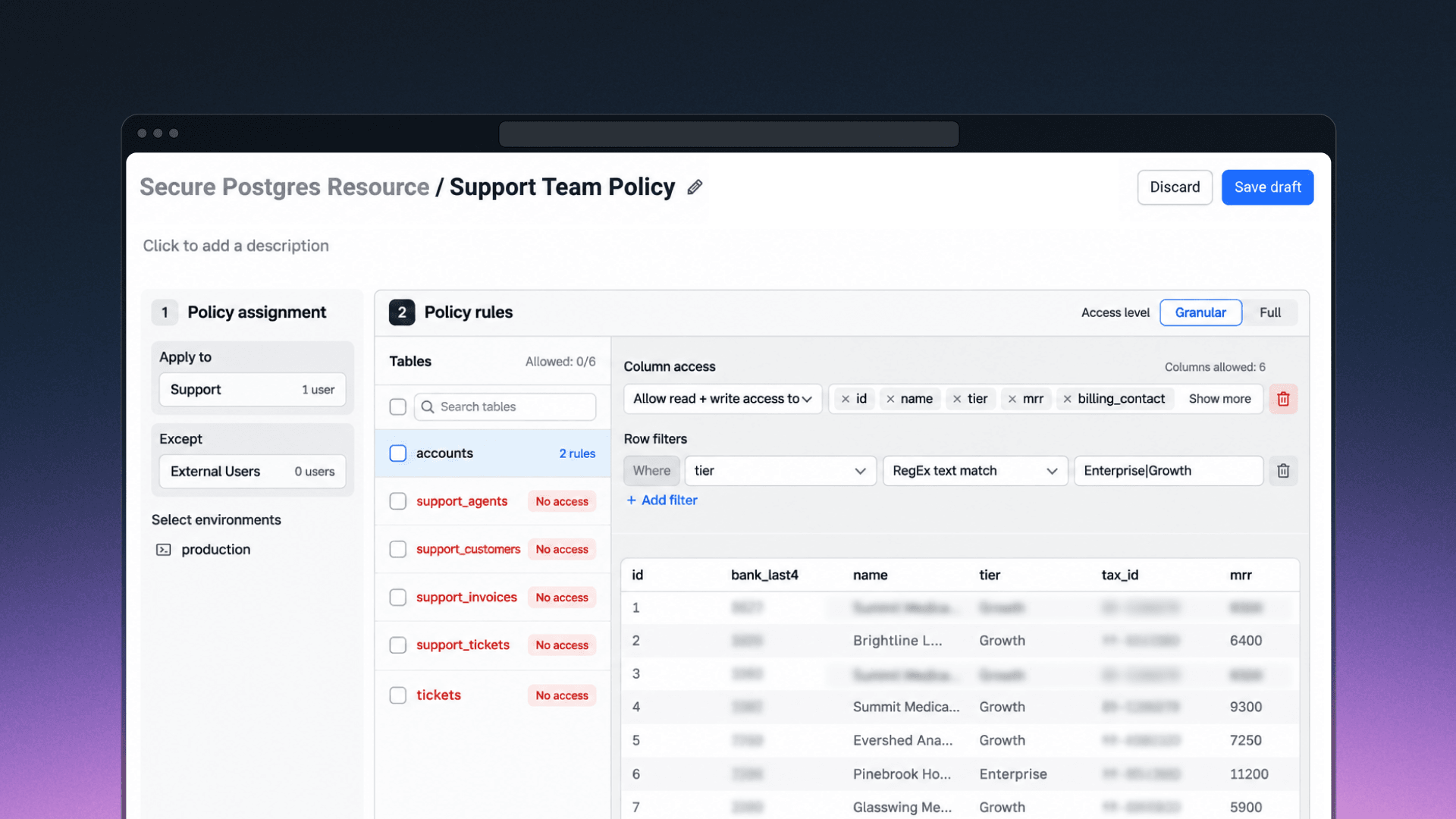
For finer control, Data Access Enforcement lets a resource owner write table, column, and row policies once on a Postgres resource, and Retool checks every query against them, from apps, workflows, saved queries, and AI agents. It's in public beta for Enterprise organizations as of November 2026, on cloud and self-hosted, for Postgres resources only.
Build anywhere, ship in Retool
Pick the method that matches how you already work. Either way, the app lands on the same governed runtime with the same permissions, so the choice is small, and you can change it later. Start for free, then build your first app in the app builder, from your AI tool over MCP, or from your terminal with the CLI.